VS Code as a Replacement for PowerShell ISE
Microsoft has confirmed that the current PowerShell 5.1 will be the last Windows-specific version. With this announcement comes confirmation that PowerShell ISE will not be updated to support PowerShell 6 (aka PowerShell Core, you’ll see it named one or the other in different places).
If you want to move to PowerShell 6 and still maintain a nice development environment like ISE, your best bet is to move to Visual Studio Code.
This guide will help you set up PowerShell 6, VS Code, and configure VS Code to act a bit like ISE.
Install PowerShell 6
PowerShell 6 is not yet ready to be a full replacement for PowerShell 5.1. Therefore, the installer will install PowerShell 6 side-by-side with PowerShell 5.1, and will not conflict in any way.
Microsoft has announced that they’re working on building PowerShell 6 into Windows, but no official timeline has been set yet.
- Follow the steps here to download the latest version of PowerShell 6 (or go directly to the GitHub releases page)
- Run the installer and follow the prompts
Install PowerShell Modules
Because PowerShell 6 is a separate entity from PowerShell 5.1, you will need to install any modules that you often use.
For example, to install the Azure PowerShell module:
- Open PowerShell 6 as Administrator from the Start Menu
- Install the module:
Install-Module -Name Az -AllowClobber
Install VS Code
- Download the latest version of VS Code from here
- Run the installer and follow the prompts
Configure VS Code
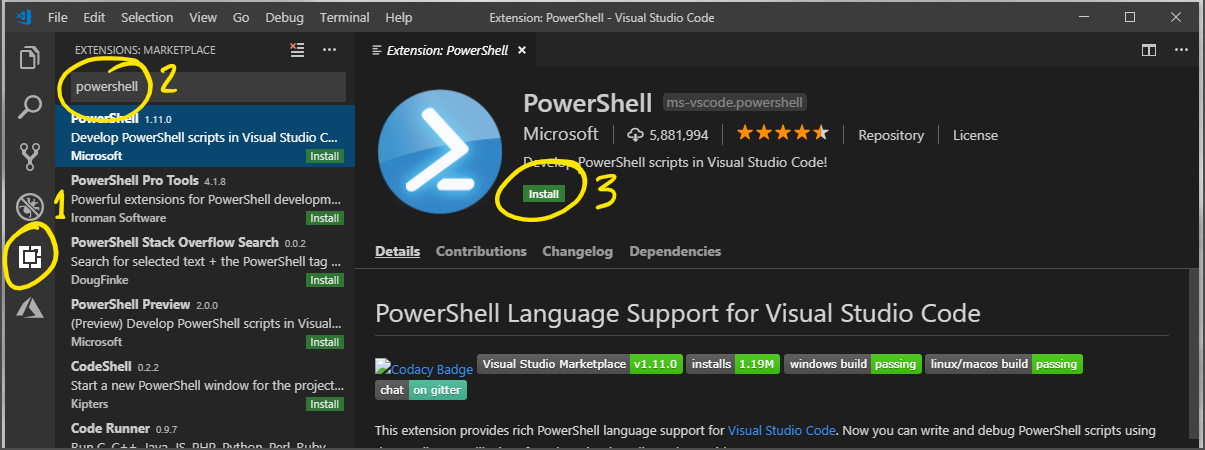
VS Code is extremely extensible through the use of Extensions. To start installing extensions, open the Extensions sidebar, and then search for and install the PowerShell extension by Microsoft.
You’re basically ready to go now, but the experience can be greatly improved by setting some configuration options.
Open File -> Preferences -> Settings, or press Ctrl+,
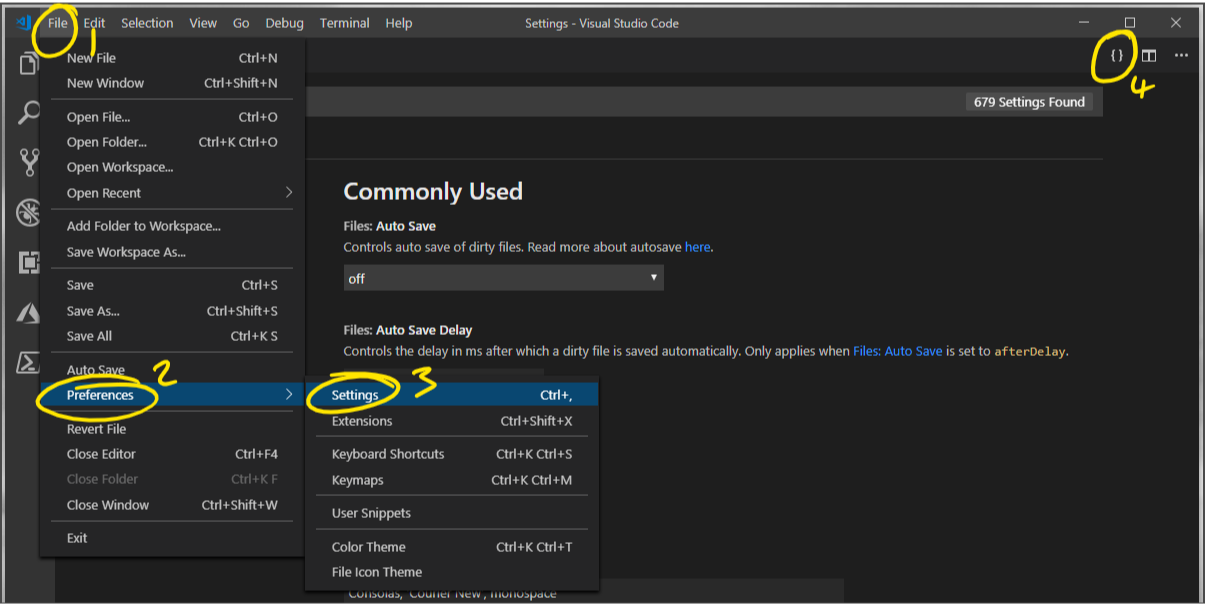
Click the {} button in the top right corner to Open Settings (JSON)
Add the following lines:
{
    // Set the default version of PowerShell to use
    "powershell.powerShellExePath": "C:/Program Files/PowerShell/6/pwsh.exe",
    // Keep focus in the editor when you execute script with F8
    "powershell.integratedConsole.focusConsoleOnExecute": false,
    // Enable Tab completion
    "editor.tabCompletion": "on",
    // Optional: Show whitespace characters in the editor
    "editor.renderWhitespace": "all",
    // Optional: Automatically trim trailing whitespace from files when saving
    "files.trimTrailingWhitespace": true
}
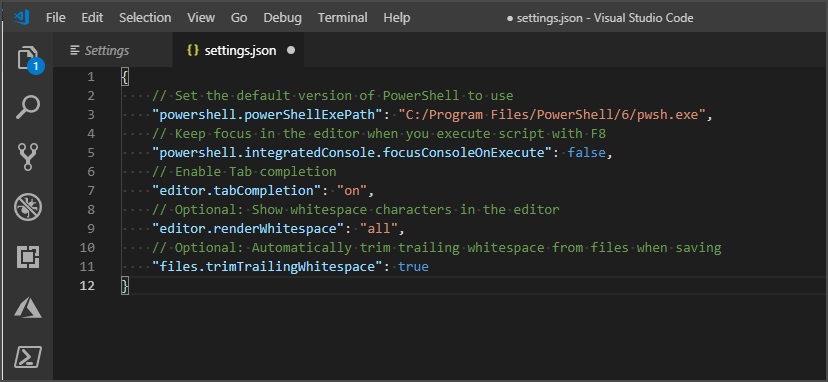
Save the file, and you’re ready to go!